For Home Assistant, the Truma Level Control is the easiest gas sensor there is. It does the maths itself and delivers the level ready-made in percent, plus the remaining amount and an estimated range in days. Nothing to calculate, nothing to calibrate.
What is missing is the connection once your motorhome is out of radio range. Here is the route at a glance; the details are in the Truma Level Control chapter of our Home Assistant guide.
The key points
- The CampMatic box in the vehicle reads the Truma Level Control over Bluetooth and sends the values via Wi-Fi or 4G over MQTT to your Home Assistant, wherever it runs.
- The values arrive ready-calculated: level in percent, remaining amount and estimated days left. You need no template sensors in Home Assistant; plain MQTT sensors are enough.
- Requirements: bottle type set in the Truma app, firmware 1.22 or newer on the CampMatic box.
- No subscription: the app and the server are free.
Why go through the CampMatic box?
Home Assistant only reads Bluetooth sensors within range of its own Bluetooth hardware. If your motorhome is in winter storage, on a pitch somewhere or on the road with you, nothing reaches your home.
So the CampMatic box stays in the vehicle. It reads the sensor where the bottle is and delivers the values to your Home Assistant over MQTT. You also see your gas supply in the CampMatic app and in the Telegram bot. And in the app you can set up a notification for the level by email or Telegram.
What you need
- A Truma Level Control. It sits magnetically under the bottle and suits European steel and aluminium bottles from 5 to 33 kg. Sensors are not included with CampMatic.
- The bottle type in the Truma app. This is mandatory: only from it does the sensor compute percent and kilograms. CampMatic only reads that value and cannot override it. As long as no bottle type is set there, the reading stays empty.
- A CampMatic box with firmware 1.22 or newer: CampMatic Guard for any camper, or CampMatic for Truma CP Plus. With older firmware the app does not offer the sensor type at all.
- A running Home Assistant that you have admin access to.
With a Truma iNet X Panel it works differently. There you pair the Truma Level Control with the panel, not with the CampMatic box for Truma iNet X. Its levels then appear in the CampMatic app automatically. The steps below and the chapter in the guide describe a sensor paired directly with the box. Other sensors such as the Mopeka are added to the box as usual, with iNet X too.
The steps at a glance
- Choose the bottle type in the Truma app. Once, before you pair the sensor with CampMatic.
- Pair the sensor in the CampMatic app. Under Settings → Devices → Add device, choose Truma Level Control. The sensor shows up in the scan on its own. Then press the button on the sensor once; reading out the credentials takes about a minute. When it says "ready", tap it and save (Help: External Devices).
- Connect Home Assistant. Get the credentials from the CampMatic app, set up Mosquitto broker, create the bridge file (chapters 2, 3 and 4). If the connection is already running for other CampMatic values, skip this.
- Look up the slot number. In the MQTT integration, listen to
campmatic/<GERAETE_ID>/+/config. Thetruma/configline shows the slot number (slot) of your sensor (chapter 8). - Create the sensors. Add plain MQTT sensors to the package file, check the configuration, restart Home Assistant (chapter 11).
Which values arrive
Each value has its own topic following the pattern campmatic/<GERAETE_ID>/truma/bottle_<SLOT_TRUMALC>/…:
gas_percent: level in percentgas_gram: remaining amount in grams (the CampMatic app shows it in kilograms)remaining_days: estimated days lefttemperature: temperature in degrees Celsiusbattery: sensor battery in percentquality: measurement quality from 0 to 3bottle_type: bottle type as a numberlimit_flag: limit reached, 0 or 1
Mind the slot number: the Truma Level Control uses the same word bottle as the Mopeka, just under truma instead of mopeka. CampMatic counts the slots consecutively across all sensor types. So use exactly the number you noted for the Truma Level Control.
No template sensors needed
Because the sensor does its own maths, you only create plain MQTT sensors in Home Assistant: level, remaining amount, range and sensor battery. The limit comes as a separate binary_sensor. It reads OK while there is enough gas. The finished blocks are in chapter 11 and in the package file for download.
Two things worth knowing:
- The range is an estimate. The sensor extrapolates it from recent consumption. After a bottle change or a longer period of standing still, it takes a few days before the figure means anything again.
- The bottle type stays a number.
bottle_typecomes from Truma's own bottle database, and there is no plain-text name over MQTT. You see the name in the CampMatic app.
New MQTT sensors only appear after a proper restart of Home Assistant. New readings usually arrive only every few minutes and are not buffered, so right after a restart they are briefly unavailable.
Dashboard and a second bottle
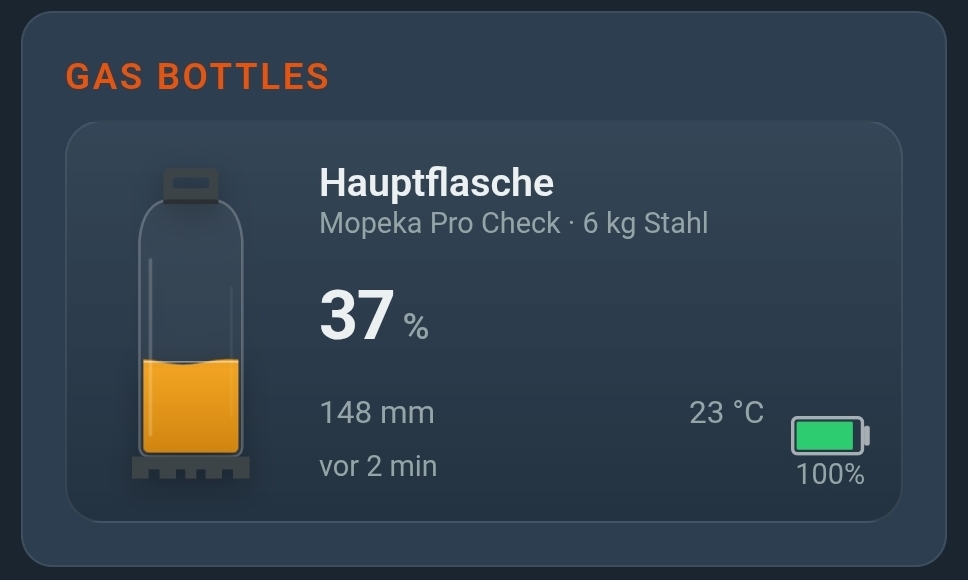
The ready-made dashboard from the guide has the group Gas Bottle 2 for the Truma Level Control. It only uses cards Home Assistant ships with. The gas gauge shows green from 40 and yellow from 20 percent (chapter 14).
Each box pairs up to eight Bluetooth sensors, of which up to four battery monitors. You can mix gas sensors: one bottle with a Truma Level Control, the other with a Mopeka. For the Mopeka, Home Assistant needs two template sensors because it only sends raw values. How that works is in Mopeka in Home Assistant.
When a value is missing
The reading stays empty: usually the bottle type is missing in the Truma app. Only with it can the sensor calculate.
A single sensor has no value: then the slot number is usually wrong. It can change when a sensor has been paired again. Look it up once more. More cases are in chapter 15, troubleshooting.
What it costs
- CampMatic Guard WiFi: €89. Uses an existing Wi-Fi network, such as a mobile hotspot.
- CampMatic Guard 4G: €129. Needs no Wi-Fi but its own SIM card (not included), such as an IoT SIM from about €2 a month.
- App and server: free, no subscription.
More about the sensor is on the Integrations page.
Further reading: